- Claude Code runs the same Claude model in your terminal, but with direct access to your project files, shell commands, and git.
- Claude.ai Artifacts translate into real files created directly in your repo, eliminating copy/download steps and making outputs immediately runnable.
- Claude.ai Projects map to a version-controlled CLAUDE.md (plus an optional global ~/.claude/CLAUDE.md) that sets persistent instructions and team-shared conventions.
- Instead of uploading files for context, Claude Code reads from your filesystem on demand, turning your repo (docs, specs, style guides) into the knowledge base.
- Claude Code adds targeted file editing with approval, command execution for self-verification, git-native workflows (/review, /commit), plus extensibility via MCP servers and parallel subagents.
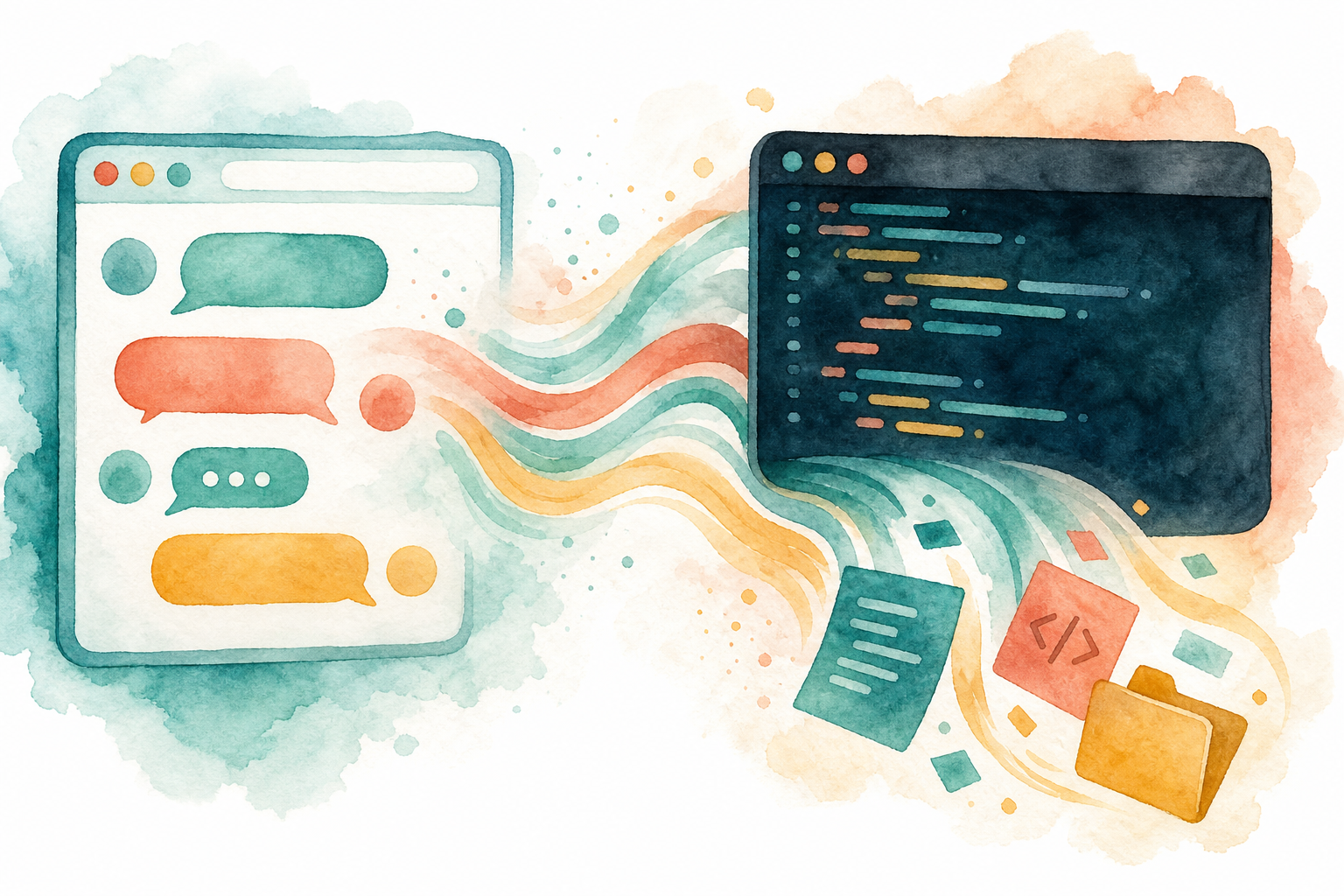
Claude Code is Claude running in your terminal. Same model, same intelligence. The difference is where it runs and what it can touch. In Claude.ai, you copy-paste context into a chat window. In Claude Code, you open your terminal in a project folder and Claude already has access to everything in it. It can read files, create new ones, edit existing ones, run terminal commands, and interact with git.
The transition feels unfamiliar for about 15 minutes. After that, the terminal becomes the more natural place to work. Here's the feature-by-feature translation so you can switch without guessing.
Artifacts become real files
In Claude.ai, generated code appears in an Artifact panel. You preview it, copy it, download it. In Claude Code, there are no artifacts. When Claude generates something, it creates an actual file on your computer. A Python script becomes a .py file in your project folder. An HTML page becomes an .html file you can open directly.
This sounds like a downgrade until you realize the implication: everything Claude creates is immediately part of your project. No downloading, no copying into the right folder, no "Save As." It's already there, in your actual file system, ready to run.
Projects become CLAUDE.md
Claude.ai Projects let you create workspaces with custom instructions and uploaded reference files. You might have a "Marketing Copy" project with brand guidelines and tone of voice instructions. Claude Code's equivalent is a file called CLAUDE.md in your project's root folder. Plain markdown. Write instructions, conventions, and context that Claude reads at the start of every session.
The advantage: CLAUDE.md lives in your repository. It's version-controlled. Your whole team can share it, edit it, review changes through normal git workflows. It's not locked inside a browser. Run /init in a new project and Claude scans your codebase and generates a starter.
Account-level instructions go in ~/.claude/CLAUDE.md and apply to every project. Project-specific instructions go in each project's root. Claude reads both, project taking priority.
File uploads become file access
In Claude.ai, you drag files into the chat window to give Claude context. In Claude Code, you don't upload anything. You say "read the README" or "look at the files in src/" and Claude opens them directly. If your project has 200 files, Claude can access all of them. It reads what it needs, when it needs it. No uploading, no size limits beyond the context window.
Your file system is the knowledge base. Put your style guide in the repo, put your API spec in a docs/ folder. Claude reads them all.
What Claude Code adds
File editing. Claude Code doesn't just create files, it modifies existing ones. It shows you the exact change (old text replaced with new text) and asks for approval. Instead of generating a complete file and manually merging output, you say "add error handling to the login function in auth.py" and Claude opens the file, finds the function, makes the targeted edit.
Terminal commands. Claude runs anything your machine can run. python3 script.py, npm test, git status, curl. This means Claude can verify its own work: write code, run the tests, see the failure, and fix it, all without you doing anything.
Git integration. Claude understands git natively. It checks status, creates branches, stages files, writes commit messages, creates pull requests. /review runs a code review on your current changes. /commit handles your staging and messaging.
MCP servers. Connect Claude Code to external services through the Model Context Protocol. A Trello server lets Claude manage boards. A database server lets it query your data. A Slack server lets Claude read and send messages. Install with claude mcp add <name> <command>.
Subagents. For complex tasks, Claude Code spawns separate instances that work on subtasks in parallel. One updates the code while another updates the tests, simultaneously.
When to use which
Use Claude.ai when you need a quick answer, want to brainstorm ideas, want to preview HTML or diagrams visually, or you're on your phone. Use Claude Code when you're working on actual files, need Claude to read or edit code, want to run tests or commands, need to work with git, or want full codebase context.
Claude.ai has visual previews, drag-and-drop, and zero setup. Claude Code has file editing, terminal access, and the ability to work with your full project as-is. Most people who use both settle into a natural split within a week. Claude.ai for thinking. Claude Code for building.
Your first ten minutes
Install with curl -fsSL https://claude.ai/install.sh | bash (also available via npm or Homebrew). Navigate to any project folder. Type claude.
Say "what does this project do?" and watch Claude read your files and explain your codebase. Say "add a comment at the top of README.md explaining the project setup" and watch it propose the edit. Run npm test and ask Claude to fix any failures. Type /init to generate your first CLAUDE.md. Type /cost to see token usage.
Close the session with Ctrl+C. Come back later and run claude -c to pick up where you left off.
You need a Pro, Max, Team, or Enterprise account. The free tier doesn't include Claude Code.
If you’re used to Claude.ai, start by opening Claude Code in a project folder and creating a CLAUDE.md that captures your conventions, goals, and key references so every session begins with the right context. Keep specs and guides inside the repo so Claude can read them as needed, then lean on targeted edits and running tests from the terminal to iterate faster with fewer manual steps. As you get comfortable, use the built-in git commands for cleaner workflows and consider MCP servers when you want Claude to reach beyond your codebase into tools like Slack, Trello, or databases.